Series: Matter from A to Z · Part 5 of 8
Set Up a Matter Device: Step by Step to a Working Device
Set up a Matter device in seven steps: QR code, Bluetooth, Wi-Fi and controller. Connect your Matter device reliably to your smart home.
By Tobias ·· 7 min read
To set up a Matter device, you usually need less time than you might expect. The process is the same for almost every device: you scan a code, the device connects to your network, and the control system adds it. The part that tends to cause problems is the preparation. Here you'll learn what to check beforehand, how the actual process works and how to tell that everything went well.
The basics of Matter are explained in the article What Is Matter?. This article focuses on the practical setup.
Before you start: what you need
For the setup you need four things: a control system with Matter support (the controller), a smartphone with the matching app, the Matter device itself and the setup code. The setup code is printed on the device, on the packaging or in the leaflet. It comes as a QR code and often also as an 11-digit numeric code.
A short preparation also helps:
- Turn on Bluetooth on your smartphone. Many devices are first found via Bluetooth LE.
- Grant the app permissions. The app needs access to Bluetooth and, depending on the system, to the local network or your location. The exact names depend on the operating system.
- Check your network. If the device connects via Wi-Fi, your home network must be reachable where the device is located.
- Bring the device close. For the first connection, your smartphone should be no more than a few metres away from the device.
The radio technology determines the process
The setup path differs depending on the radio technology. A Wi-Fi device connects directly to your router. A Thread device, on the other hand, needs a border router that establishes the connection to your home network. You can find out which technology your device uses in the data sheet or in the device directory on matter.tips. The differences are explained in the article Thread, Wi-Fi or Ethernet. The role of the border router is described in the article Border Router and Controller.
For Thread devices the rule is: the device can only join the Thread network once the border router is reachable. If the border router is on a different floor, it's worth setting the device up close to it first and then moving it to its final location.
Set up a Matter device: the process in seven steps
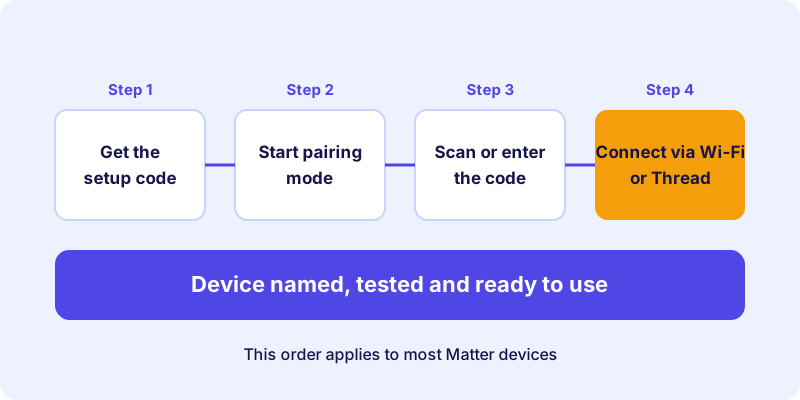
The following instructions apply to most Matter devices. The menus and labels differ depending on the app and manufacturer. Where your app differs, follow the manufacturer's instructions.
How-to
Set up a Matter device
The typical setup of a Matter device, from the setup code to the function test.
Find the QR code or the 11-digit numeric code. It is on the device, on the packaging or in the leaflet. Keep it safe in case you need to set up the device again later.
Many devices are ready as soon as they are powered on. Others need to be put into pairing mode with a button or by switching them on and off several times. The exact procedure is in the manufacturer's manual.
In your control system, open the function for adding a device and select Matter. The label may differ slightly depending on the system.
Scan the QR code with your smartphone camera. If that doesn't work, enter the numeric code. Make sure the code is captured completely and without typing errors.
The device connects to your smartphone via Bluetooth and receives the access credentials for your network. For Wi-Fi devices you enter your Wi-Fi password at this point. For Thread devices this step is usually handled by the border router.
Give the device a unique name, such as "Living room floor lamp", and assign it to a room. Good names make voice commands and automations easier later on.
Switch the device once from the app and check that it responds. If the device has a physical switch, test that as well. Only then set up automations.
Common stumbling blocks during setup
With most devices the setup works on the first attempt. If it doesn't, one of these causes is often to blame:
- The device is already in another system. A device that is already set up in a Matter system cannot simply be added again. Remove it from the old system first or reset it according to the manufacturer's instructions. How to run one device in several systems is explained in the multi-admin article.
- The Wi-Fi details are wrong. Many Matter devices only support the 2.4 GHz band. A network that only offers 5 GHz will not be found.
- The Bluetooth connection drops. Hold the smartphone closer to the device and close any other Bluetooth connections.
- The setup code is not recognized. Check the lighting and the distance of the camera. The numeric code is the alternative.
If a device cannot be added at all, the article Fixing Matter problems provides an overview of the most common causes.
Setting up several devices one after another
If you are setting up many devices at once, it's worth not putting them all into pairing mode at the same time. Set them up one after another and name each device right after its setup. This avoids confusion, for example when several identical plugs are spread around the house.
A practical tip: before you start, note down the room and purpose of each device. This saves a lot of time when assigning them later.
After setup: what to check
A device that has been set up is not automatically finished. Check these points before you put it into everyday use:
- The device is visible in the system and shows a current status.
- Control from the app works without delay.
- The device remains reachable after the control system restarts.
- A software update has been installed, if one is available.
If you later want to use the device in a second system, take a look at the article Matter Multi-Admin: One Device, Several Smart Home Systems. It explains how sharing works.
Conclusion: patience and good preparation pay off
Setting up a Matter device is usually straightforward if you check the requirements first. Have the setup code ready, use the 2.4 GHz network for Wi-Fi devices and make sure a border router is reachable for Thread devices. After setup, a function test is worthwhile. If you are still looking for suitable devices, the device directory can help. To get started with the series, read the article What Is Matter?.
Frequently asked questions
Where do I find the setup code for my Matter device?
The code is usually on the device itself, on the packaging or in the leaflet. It comes as a QR code and often also as an 11-digit numeric code.
Why isn't my Matter device found on Wi-Fi?
Many Matter devices only support the 2.4 GHz band. Check whether your router has this band enabled and whether the device is within range.
Can I set up a Matter device without Bluetooth?
Most devices use Bluetooth LE for the initial setup. Without Bluetooth on your smartphone, the setup is generally not possible.
Do I have to reset a device before setting it up again?
If the device is still linked to a system or can no longer connect, a reset helps. The steps depend on the manufacturer and are described in the manual.
Do I need a border router for every Matter device?
No. Wi-Fi devices connect directly to the router. You only need a border router for devices that are connected via Thread.