Matter with Google Home: How to Set Up Devices
Set up Matter with Google Home: requirements, Thread border router, Google account and multi-admin. Learn how to add Matter devices in the app.
By Tobias ·· 6 min read
Matter with Google Home is a workable way to bring devices from different manufacturers together in one app. Google Home is a Matter controller. You add Matter devices in the Google Home app, control them by app or voice, and include them in routines. Thread devices also need a Thread border router in your home. Here you will learn what to prepare, how the setup works, and what limits there are.
The basics of Matter are explained in the article What is Matter?. The general setup process is described in the article Set up a Matter device: step by step to a finished device.
What you need for Matter with Google Home
To make the setup work, prepare the following:
- A Google account. You use this account to manage your home in the Google Home app.
- The Google Home app on your smartphone. It handles the setup and the control.
- Bluetooth and permissions. The app needs access to Bluetooth and the local network. Allow access when you are asked.
- The setup code of the device, as a QR code or a numeric code.
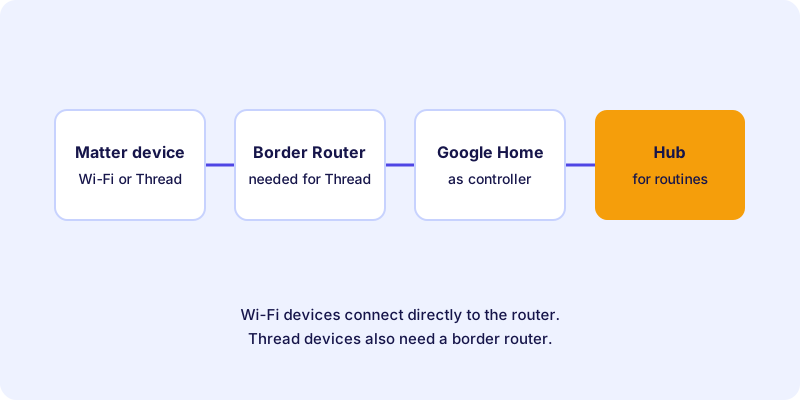
- A border router for Thread devices. Certain Google Nest devices can take on this role. Which models are suitable is listed in Google's documentation and may change.
An example of a Thread device from the directory is this smart plug with Thread connectivity:
If your device connects over Wi-Fi, no border router is needed. The device connects directly to your router. I explain the differences in the article Thread, Wi-Fi or Ethernet.
The home and the hub in Google Home
In Google Home you create a home and divide it into rooms. Devices are then assigned to the matching room. This structure is the basis for voice commands such as “Turn off the living room light” and for routines.
For control while you are away, your Google account is the link to your home. Whether a speaker or display in the house makes sense as a hub depends on which functions you want to use and which devices you already own.
An example of a Google Home hub that serves as a Thread border router, depending on the model:
Setting up a Matter device in Google Home: step by step
Google regularly adjusts interfaces and labels. The following steps describe the basic process. If a step is named differently on your device, follow the hints in the app and the manufacturer's guide.
How-to
Set up a Matter device in Google Home
The basic process for adding a Matter device to Google Home.
Make sure your home is set up in the Google Home app. For Thread devices, a border router must be reachable in the house.
Many devices are ready as soon as they are connected. Others need a button press. The procedure is in the manufacturer's guide.
Open the Google Home app and select the function to add a device. Choose the option for Matter devices. The labels may differ.
Scan the QR code with the camera of the smartphone or enter the numeric code. If you enter it manually, check every digit.
Give the device a clear name and assign it to a room. Good names make voice commands more reliable.
Control the device once from the app and check the switch on the device. Then set up routines.
Limits and special features of Google Home
Google Home connects Matter devices well with voice control and routines. There are still a few points to keep in mind:
- The feature range depends on the device. Simple devices such as plugs and lamps usually integrate well. Devices with many settings often show only some of their functions.
- Routines need clear names. Identical or similar device names quickly lead to confusion with voice commands.
- Manufacturer features stay in the manufacturer's app. Additional functions such as fine adjustments or firmware updates are often only available there.
- Test before you automate. Check each device on its own before you add it to a routine.
Matter in Google Home and other systems
Many Matter devices can be used in several systems at the same time. This principle is called multi-admin. Whether this is possible, and how many systems can run in parallel, depends on the device and the manufacturer. I explain the basics and restrictions in the article Multi-admin: using one Matter device in several smart home systems.
Routines only run in the system where you created them. A rule in Google Home therefore does not automatically take effect in another app.
When a device cannot be added
Typical causes are Bluetooth, the wrong Wi-Fi band, a missing border router, or a device that is still set up in another system. A detailed checklist with solutions is in the article Matter in Google Home: Common Errors When Adding Devices. General notes are in the article Fix Matter problems.
Conclusion: Google Home is a solid Matter controller
Google Home adds Matter devices reliably when you meet the requirements. Have a Google account, Bluetooth and permissions ready, and for Thread devices make sure a reachable border router is available. Then test the function before you create routines. You can find suitable devices in the device directory. When buying new devices, the article Buy Matter devices helps.
Frequently asked questions
Do I need a Google account for Matter in Google Home?
Yes. Your Google account is how you manage the home, the devices and the routines in the Google Home app.
Which Google devices can act as a Thread border router?
Certain devices from the Google Nest family can take on this role. Which models are suitable is listed in Google's current documentation.
Do I need a border router for every Matter device?
No. Wi-Fi devices connect directly to the router. You only need a border router for devices that are connected via Thread.
Can I use a Matter device in Google Home and in another system?
Yes, with multi-admin, if the device and the manufacturer support it. The number of systems that can be used at the same time depends on the manufacturer.
Why doesn't my Matter device show up in Google Home?
Common causes are a missing Bluetooth connection, the wrong Wi-Fi band, an unreachable border router, or a device that is still attached to another system.