Matter with SmartThings: Add and Manage Devices
Set up Matter with SmartThings: Samsung account, hub as border router, rooms and routines. Learn how to add and manage Matter devices in SmartThings.
By Tobias ·· 6 min read
Matter with SmartThings is a good option if you already run devices on Samsung's smart home platform, or if you are looking for a system that brings many Matter devices together. SmartThings is a Matter controller. You add Matter devices in the SmartThings app, assign them to rooms and include them in routines or automations. For Thread devices, a border router also plays a role. Here you will learn what to prepare, how the setup works, and where there are limits.
The basics of Matter are explained in the article What is Matter?. The general setup process is described in the article Set up a Matter device: step by step to a finished device.
What you need for Matter with SmartThings
Prepare these points before you start:
- A Samsung account. SmartThings manages your devices and rooms through this account.
- The SmartThings app on your smartphone. It handles the setup, the management and the control.
- Bluetooth and permissions. Allow the app access to Bluetooth and the local network when it asks.
- The setup code of the device, as a QR code or a numeric code.
- A border router for Thread devices. A suitable SmartThings hub or another compatible device can take on this role. Check the documentation to see whether your device qualifies.
An example of a Thread device from the directory is this motion sensor. It is well suited to automations, for example for the hallway light:
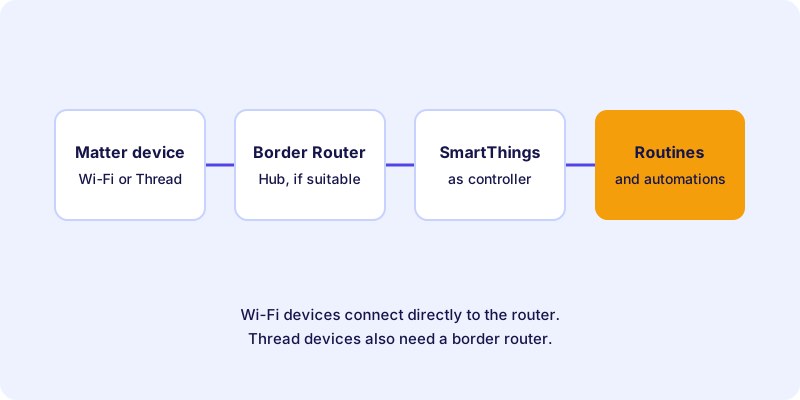
Wi-Fi devices do without a border router. They connect directly to your home network. Which technology suits which device is explained in the article Thread, Wi-Fi or Ethernet.
The role of the hub and the border router
A SmartThings hub bundles devices and automations. Whether a hub or another device in your home also works as a Thread border router depends on the model and its software support. The border router connects the Thread network with your home network. If it is too far from the device, the connection can become unstable.
Setup usually works best when the border router is switched on, reachable on the network and close to the device. Once the device is set up, place it where it will be used permanently.
Setting up a Matter device in SmartThings: step by step
Samsung regularly changes the menus of the SmartThings app, and the labels may differ depending on the version. The following guide describes the basic process. If anything differs, follow the app and the manufacturer's guide.
How-to
Set up a Matter device in SmartThings
The basic process for adding a Matter device to SmartThings and managing it.
Sign in with your Samsung account. Make sure a border router for Thread devices is switched on and reachable in the house.
Put the device into pairing mode according to the manufacturer's guide. Many devices are ready as soon as they are powered on.
Open the SmartThings app and select the function to add a device. Look for the Matter device in the list or scan the code.
Scan the QR code with the camera of the smartphone or enter the numeric code. Check your input before you confirm.
Assign the device to a room and give it a unique name. A clean structure makes routines and automations easier.
Switch the device off and on once from the app and check the reaction. Only then create routines.
Managing: rooms, routines and automations
Once a device is set up, it is worth looking at how you manage it. Rooms help you keep track, especially when many similar devices are spread around the house. Name your devices consistently, for example by room and purpose.
For automations, SmartThings offers routines, in which you combine triggers and actions. For Matter devices the rule is: test a single control first, then add it to a routine. This way you find errors faster.
Limits and special features
SmartThings supports Matter devices well in many cases. Still, there are points you should keep in mind:
- The feature range depends on the device. Basic functions such as switching and dimming usually work without problems. Manufacturer-specific settings often remain in the manufacturer's app.
- A Samsung account is required. Without an account you cannot manage the devices and routines.
- Thread needs coverage. A weak Thread network shows up as delayed reactions. An additional Thread-capable router in the house can help.
- Automations only work in their own system. A routine in SmartThings does not control a device that is connected only in another app.
Multi-admin: a device in SmartThings and other systems
Matter allows a device to be known to several controllers at the same time. This principle is called multi-admin. Whether this applies to your device, and how many systems are possible, depends on the manufacturer. The basics are explained in the article Multi-admin: using one Matter device in several smart home systems.
When SmartThings cannot find a device
The causes are similar to those of other systems: a missing Bluetooth connection, network problems, a missing border router, or a device that is still set up in another system. General solutions are summarized in the article Fix Matter problems.
Conclusion: SmartThings manages Matter devices well
SmartThings adds Matter devices reliably when you prepare your account, Bluetooth and border router. For Thread devices, make sure the router is easy to reach, and test each device before you create routines. You can find suitable devices in the device directory. For an overview of the differences between Matter and manufacturer systems, see the article Matter vs. proprietary ecosystems.
Frequently asked questions
Do I need a Samsung account for Matter in SmartThings?
Yes. Your Samsung account is how you manage devices, rooms and routines in the SmartThings app.
Which SmartThings devices can act as a Thread border router?
A suitable hub or another supported device can take on this role. Whether your model qualifies is stated in Samsung's current documentation.
Do I need a hub for Wi-Fi Matter devices?
No. Wi-Fi devices connect directly to your router and do not need a border router.
Can a Matter device run in SmartThings and in another system at the same time?
Yes, with multi-admin, if the device and the manufacturer support it. The manufacturer determines how many systems can be used in parallel.
Why does my Matter device react slowly in SmartThings?
Often the cause is the Thread network. A border router with a weak connection or large distances slows down the response. An additional Thread-capable router can help.