Reset a Matter Device: How It Works and What to Know
Reset a Matter device in three steps: remove it from the controller, factory reset it, then pair it again. Includes tips for multi-admin setups.
By Tobias ·· 7 min read
Resetting a Matter device sounds like an emergency, but it is usually routine. You might do it to move a device to another system, sell it, fix a stubborn problem, or switch controllers. The order matters: skip steps, and traces of the device can stay behind in the old system.
The short answer
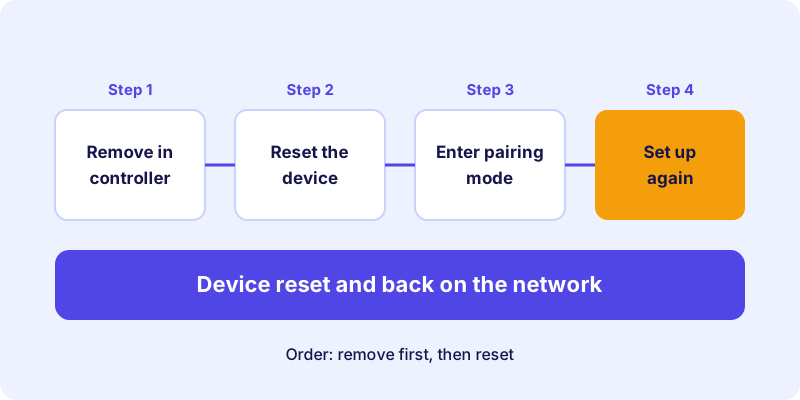
A reset deletes the device's settings and its assignment to control systems. Here is the safe order: first remove the device in your controller or app. Then perform a factory reset as described by the manufacturer. Finally, pair the device again. If the controller is no longer reachable, you skip the first step, and the reset on the device itself becomes the only option.
Why you would reset a Matter device
There are a few common reasons:
- Moving to another system. A device that is registered with one controller cannot simply be added to a second system. The article Multi-Admin: Using a Matter Device in Several Smart Home Systems explains how to run one device in several systems.
- Selling or giving it away. Before passing on a device, remove it from all systems and reset it. Otherwise it remains tied to your old household.
- Troubleshooting. If a device stops responding or cannot be added again, a clean reset of the connection often helps. The article How to Fix Matter Problems covers common causes and solutions.
- Changing controllers. Remove devices from the old system before you set them up in the new one.
Removing or resetting: two different paths
In everyday use, two actions often sound alike but work differently.
Removing the device from the controller is the standard way. You delete the device in the app or control system, and its assignment there disappears. Depending on the system and the device, the device may also be returned to its state before setup. Your device's manual shows what applies to it.
A local factory reset on the device is the emergency route. You press a button on the device or carry out the sequence the manufacturer describes. You need this when the controller is no longer reachable, for example because the old system no longer exists.
For multi-admin setups, the difference is especially important. If you remove a device from only one system, the other systems that also use it stay intact. A factory reset, in contrast, removes the device from all systems at once. If you simply no longer need the device in one system, remove it there and do not reset it.
Typical reset methods
Manufacturers reset Matter devices in different ways, but a few patterns come up again and again:
- Long press of the reset button. Many devices have a small, often recessed button. You hold it for a few seconds until the device responds.
- On-off sequences. With lamps and sockets, the device is sometimes switched on and off several times in a row. This method is not provided on every model.
- Reset through the manufacturer's app. Some devices can be reset in their companion app. This is often the safest route as long as the device is still reachable.
- Button on the hub or base station. Some systems remove devices through a dedicated button or function on the central unit.
How long you need to hold a button, and whether the device blinks, beeps or changes color, varies from device to device. Always follow the manual.
For door locks, smoke alarms and devices connected to mains power, follow the manufacturer's instructions especially carefully. Do not open a device that runs on mains voltage. Leave any work on mains voltage to a qualified electrician.
Step by step: how to reset a Matter device
The following guide describes the general process. The exact buttons and menus are in your device's manual.
How-to
Reset a Matter device
The typical process, from removing the device in the controller to pairing it again.
Open the app of your control system and remove the device there. This cleanly deletes the assignment. Only skip this step if the controller is no longer reachable.
Make sure the device has power and is within range. For devices connected to mains power, only use the controls the manufacturer describes.
Perform the factory reset exactly as the manufacturer describes it: button, hold time or button sequence. A wrong hold time can leave the reset without effect.
Wait for the device to confirm, for example by blinking or beeping. If the process is interrupted, repeat it as described in the manual instead of pressing buttons at random.
Start setup as you did the first time, using the QR code or the setup code. A step-by-step guide is in the setup article.
After the reset: pairing again
Many devices enter pairing mode automatically after a factory reset. Others need you to activate it with a button or button sequence, as described in the manual. From then on, setup works like it does for a new device: scan the QR code or enter the setup code, and the device connects to your network. The article How to Set Up a Matter Device explains the details.
Wi-Fi devices need a reachable network that supports the band the device uses. Thread devices also need a reachable border router to join the Thread network. The article Border Router and Controller explains the role of the border router.
Finding the right instructions for your device
On your device's detail page in the device directory, look for the section on resetting to factory settings. It contains the reset instructions. Where available, the page also links to the manufacturer's manual and support. Some of the information comes from the certification database. The manufacturer's instructions always take priority. You will find an overview of devices with verified reset instructions on the reset page.
Frequently asked questions
Frequently asked questions
Does a reset delete the firmware?
In general, the installed firmware stays on the device. What is mainly lost are the settings and the assignment to systems. The manufacturer's documentation states exactly what happens.
Do I have to remove the device from the controller before resetting it?
Yes, if the controller is still reachable. This keeps the assignment clean, and the system does not show orphaned devices. If the controller is no longer reachable, a reset on the device is the only option.
What happens if I remove a device from only one system?
The device stays in the other systems where it is set up. A factory reset, on the other hand, removes it from all systems.
Why does my device not respond to the button after a reset?
Some devices need a longer press or a specific button sequence. Check the manual and repeat the process calmly.
Can I reset a device that is no longer connected to my controller?
Yes, as long as you can physically reach the device, because its button works without a connection to the controller. If that fails, check the manual or contact the manufacturer.
Conclusion: the order makes the difference
Resetting a Matter device is straightforward if you follow the right order: remove it from the controller first, then reset it on the device, and pair it again afterwards. Follow the manual, save your settings beforehand, and check the border router for Thread devices.